History
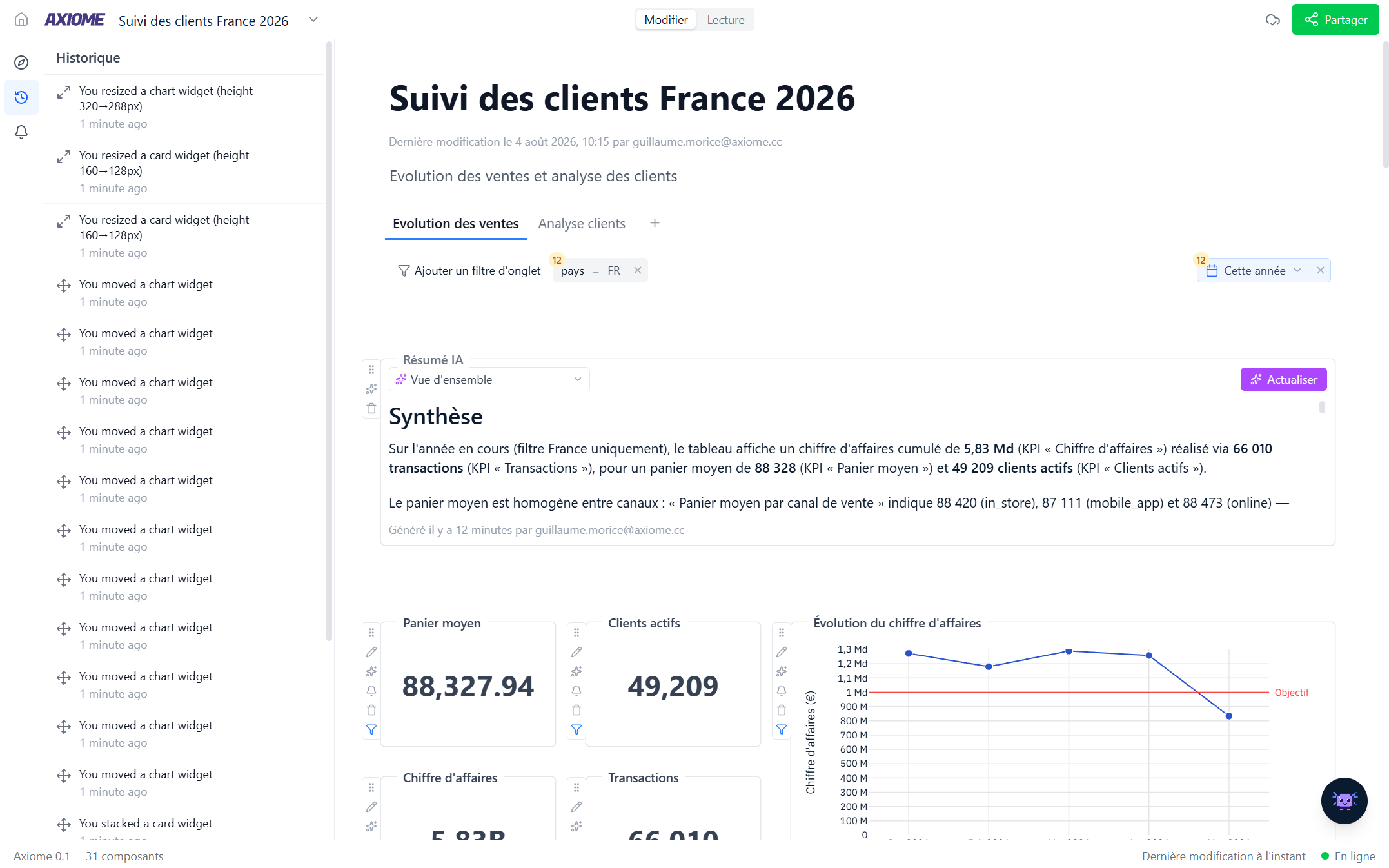
Open History from a dashboard's sidebar to see everything that happened to it.
Related edits are grouped into a single line — "3 changes to Chart" — with how long ago they happened. Click a group to expand it, then hover any entry to see what changed and who did it. Changes made by Axi are attributed to Axi, so you always know whether a person or the AI touched a widget.
Because dashboards save automatically, the history misses nothing.
When to use it:
- A number looks different from yesterday? Check what changed, and who changed it.
- Coming back from vacation? See what your team (and Axi) did in the meantime.