Threshold alerts
A threshold alert watches one number and messages you in Slack when it crosses the limit you set.
What you can watch
- A KPI card — its value.
- A chart — one of its measures. On a time chart, Axiome watches the latest period; on a chart without time, the overall total.
Tables and text components can't be watched, and a component needs to be configured (a measure and a data source) before you can alert on it. If it isn't, you'll see: "Configure this widget (measure + connection) before creating an alert."
Create one
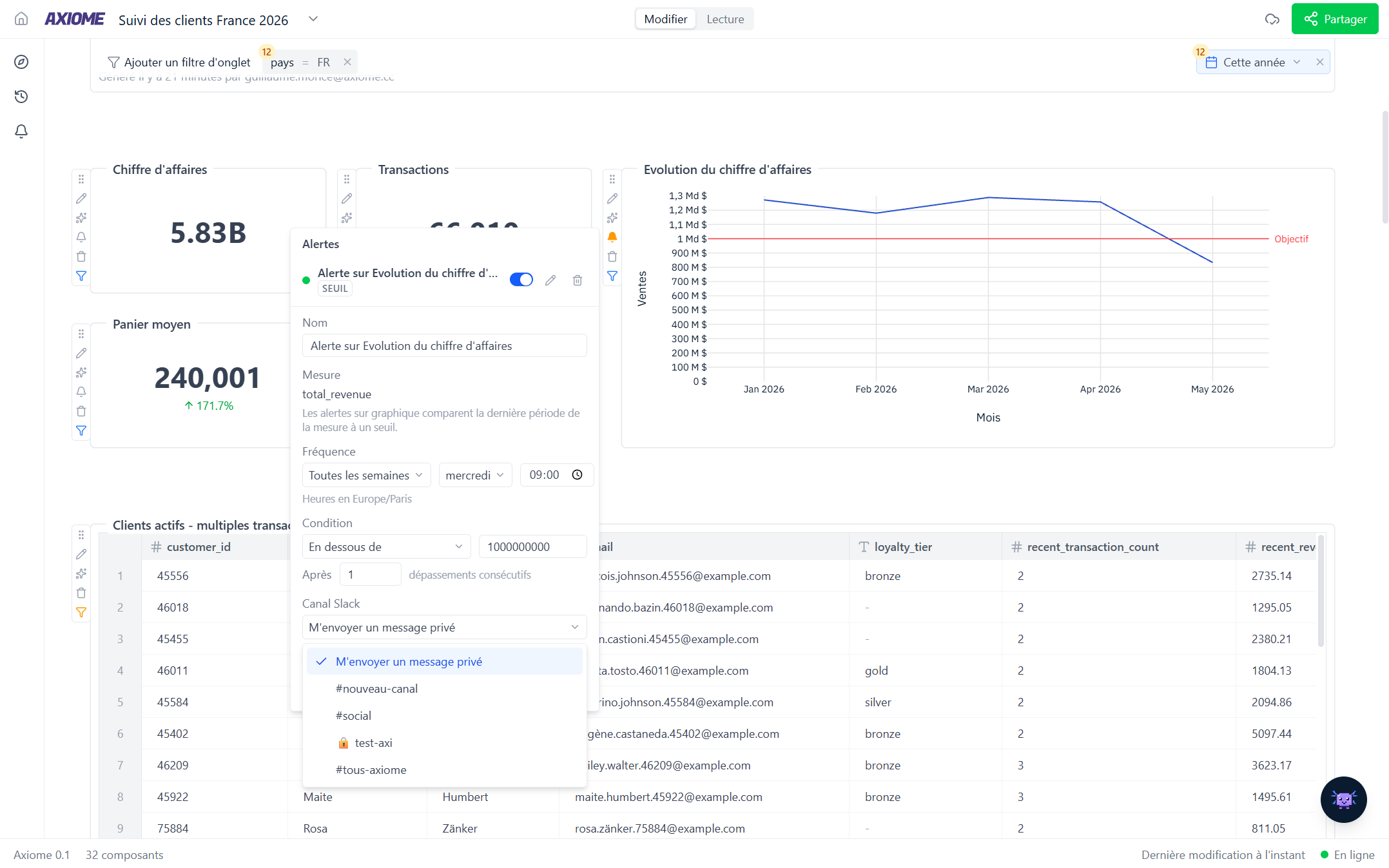
- Open the Alerts panel from the dashboard's left sidebar and click New alert — or click the bell on the card or chart directly.
- If you came from the panel, pick what to watch in Pick the widget to alert on.
- Give it a Name — Axiome pre-fills Alert on {component}, but a name like "Revenue below target" reads better in Slack.
- Leave Type on Threshold.
- On a chart, pick the Measure to watch — a chart can plot several, so Axiome needs to know which number matters.
- Set the Condition and Value.
- Choose a Frequency — how often Axiome checks.
- Pick the Slack channel, or Send me a direct message.
- Click Test to see it land in Slack, then Create alert.
An alert on a chart follows the measure itself, not the picture: any Color by split is set aside, and the dashboard's tab filters are not applied. If you need the alert to track a filtered slice, put that filter on the widget itself.
The conditions
| Condition | Fires when |
|---|---|
| Above | The value is greater than yours |
| Below | The value is less than yours |
| Equals | The value matches exactly |
| Crosses above | The value moves from below to above your limit |
| Crosses below | The value moves from above to below your limit |
| Changes by % | The value moved more than X % since the previous check |
Above/Below vs. Crosses above/below is the distinction worth understanding. Above fires as soon as Axiome sees the value already too high. Crosses above only fires on the transition — it needs a previous check to compare against, so it ignores a value that was already high when you created the alert. Use crosses when the event you care about is the moment it tips over.
Avoiding false alarms
After N consecutive breaches — the After field. Set it to 3, and the condition must hold on three checks in a row before you're notified. Ideal for a jumpy metric where one spike means nothing.
Combined with the fire-once behaviour (see the overview), this keeps a noisy metric from filling your channel.
How often it checks
| Frequency | |
|---|---|
| Every 15 minutes | The fastest available |
| Every 30 minutes | |
| Hourly | |
| Daily | Pick the time |
| Weekly | Pick the day and the time |
| Monthly (1st) | Pick the time |
Times are shown in your own timezone, taken from your browser — the editor reminds you with "Times in Europe/Paris".
Pick the slowest frequency that still fits the decision. Checking a monthly budget every 15 minutes doesn't make it arrive faster; it just adds load.
What arrives in Slack
The message carries the alert's name, the current value formatted the way the KPI card shows it, a line recalling the condition it broke, the time, and a link straight back to the dashboard.
Slack shows the alert name as the headline. "Revenue below 10k" tells the whole story in the notification; "Alert on Card 2" makes people open it to find out.