Slack integration
Administrators with the Integrations permission.
Alerts and scheduled reports are delivered to Slack. Until a Slack workspace is connected, your users see "Connect Slack first" and can't create any — so this is a prerequisite worth doing early.
Settings → Admin → Integrations
Connect external services for alert and report delivery.
Connect a workspace
- Click Connect Slack.
- Slack asks you to authorize the Axiome app for a workspace, and to pick where it may post.
- You're returned to Axiome with "Slack workspace connected."
The Axiome Slack app is outbound only — it posts messages, reads the list of channels so users can pick one, and looks up email addresses to route a "send me a direct message" alert to the right person. It doesn't read your conversations.
You can connect several workspaces with Connect another workspace — useful when different teams live in different Slacks. Users then pick the workspace, then the channel, when creating an alert.
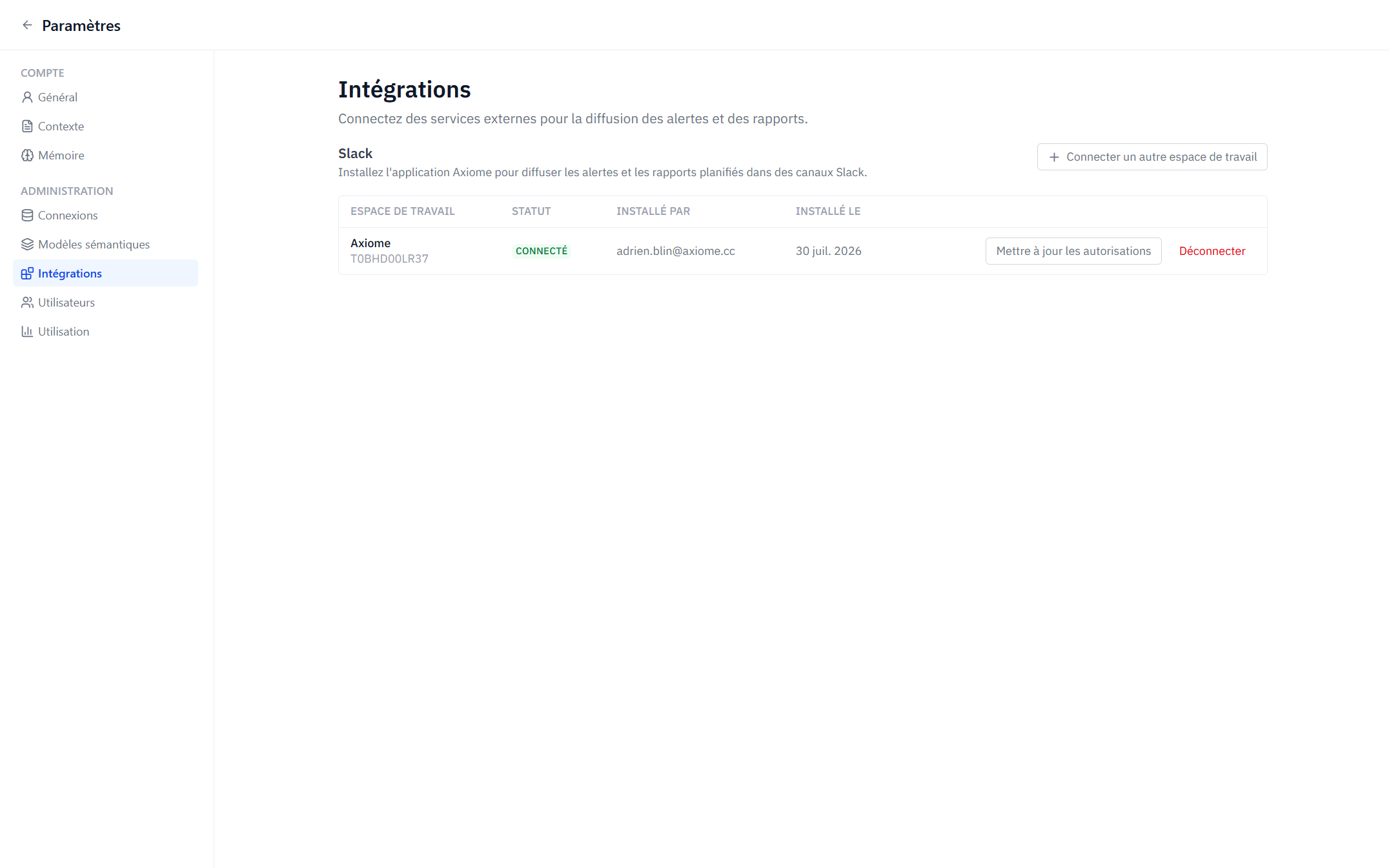
Managing connected workspaces
Each row shows the Workspace, its Status, when it was Installed, and by whom.
| Status | Meaning |
|---|---|
| Connected | Working normally |
| Revoked | The app was removed or its access withdrawn on the Slack side — deliveries are failing |
Row actions:
- Reconnect — re-run the install after a revocation.
- Update permissions — re-authorize when Axiome needs a new scope (for example after a product update that adds a delivery capability).
- Disconnect — "Alerts delivering to {name} will be disabled and the bot token deleted."
Disconnecting is safe but disruptive: alerts pointed at that workspace stop firing and stay disabled until you reconnect. The stored bot token is deleted.
Which channels users can pick
- Public channels — all of them.
- Private channels — only those the Axiome app has been invited to. If a user can't find a private channel in the picker, someone needs to invite the app to it in Slack.
- Direct messages — any user can have their alerts sent to themselves.
How delivery works
Worth knowing when someone asks "why didn't it fire?":
- A scheduler pings Axiome every minute; Axiome works out which alerts are due.
- Each due alert runs its query through the semantic layer, exactly like a dashboard component — so alert values and dashboard values can never disagree.
- The result is evaluated (threshold conditions, debounce counters) and, if it should notify, formatted and posted to Slack.
Two guarantees follow: deliveries are idempotent — a retried tick can't double-post the same scheduled message — and the fastest possible check is every 15 minutes, which is the floor offered in the frequency picker.
If an alert fails repeatedly (its component was deleted, its data source is unreachable, the Slack channel is gone), Axiome posts a warning into that alert's own channel after a few consecutive failures, naming the alert and telling the reader to fix or disable it from the dashboard's Alerts panel. Failures never pass silently, and the notice is posted once per failure streak rather than on every attempt.
Common install errors
| Message | What to do |
|---|---|
| This Slack workspace is already connected to another Axiome organization | A Slack workspace maps to a single Axiome workspace. Disconnect it there first |
| Slack installation was cancelled | The authorization was declined in Slack — retry |
| The installation could not be verified | The install link expired or was opened out of sequence. Start again from Settings |
| Only admins can manage integrations | The account lacks the Integrations permission — see Users and roles |
What you can tell your users
Once Slack is connected, alerting is self-service: any member can create alerts and reports on the dashboards they can see, without asking you. Point them at Alerts and reports.