Managing connections
Administrators with the Connections permission.
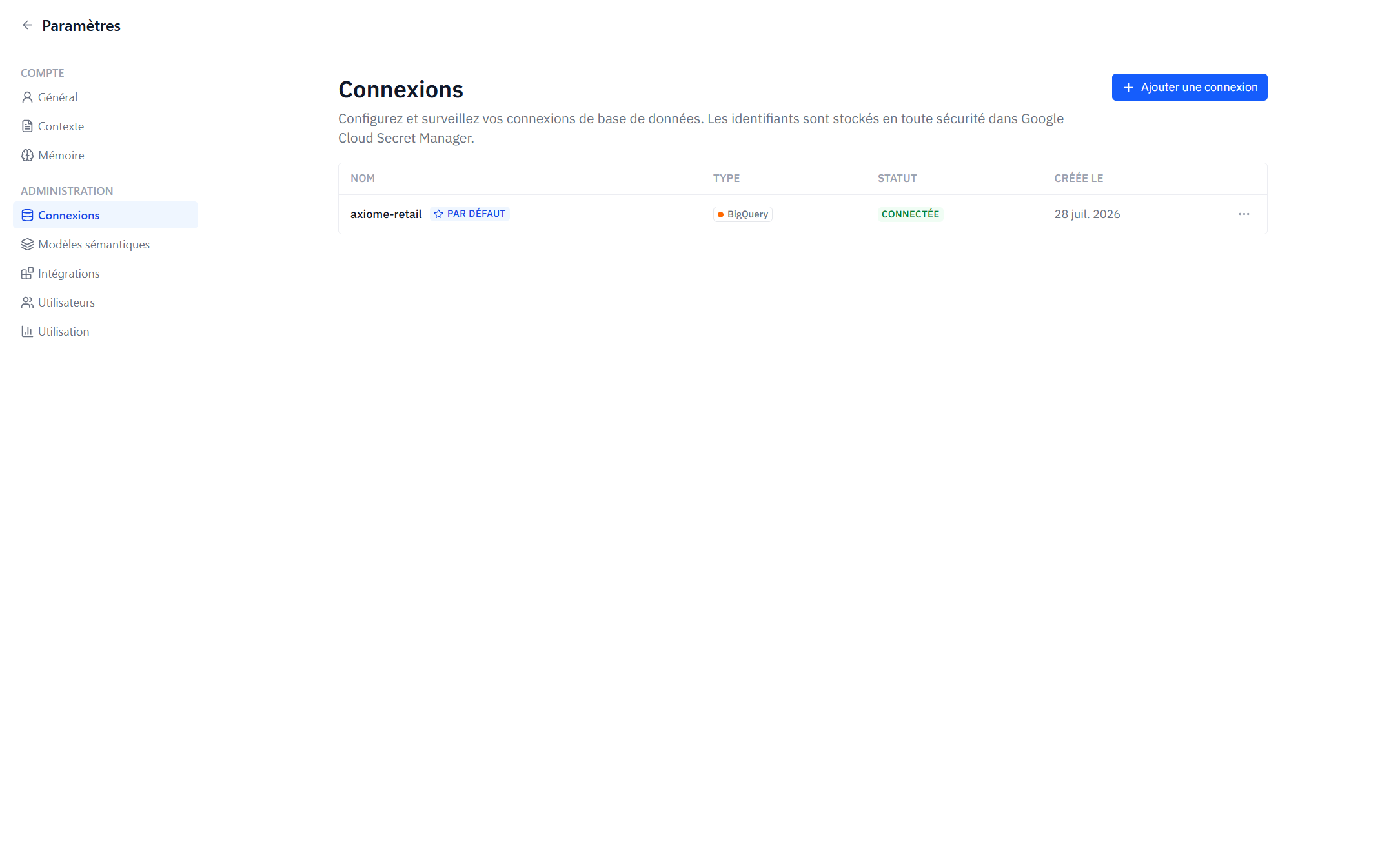
Connections are managed by workspace administrators in Settings → Admin → Connections.
Adding a connection
- Click Add Connection.
- Give it a name and pick the database type — BigQuery or PostgreSQL.
- Fill in the credentials for that type.
- Click Test Connection to verify Axiome can reach the database.
- Click Save.
You can save a connection without testing it, but Axiome will ask you to confirm — an untested connection may fail later when widgets try to query it.
Connection status
The connections list shows each connection's last known status:
- Connected — the last test succeeded.
- Failed — the last test failed; open the connection to see the error and fix the credentials.
- Not tested — the connection has never been tested.
You can re-run Test Connection from the list at any time.
The default connection
One connection is marked Default. New widgets and Axi conversations use it unless another connection is chosen. Use Set as Default on any connection to change it.
Semantic models
Each connection has its own set of semantic models, generated from its schema. Administrators curate them in Settings → Admin → Semantic models, picking the connection from the selector at the top of that page.
Deleting a connection
Delete removes the connection and its stored credentials. This cannot be undone, and widgets that used the connection will stop loading data. Axiome asks for confirmation first.
How credentials are stored
Credentials are stored in Google Cloud Secret Manager, not in Axiome's application database. Axiome retrieves them server-side only when executing a query; they are never sent to the browser. For the full journey from a widget configuration to executed SQL, see How queries work.
Axiome only reads your data — it never writes to your warehouse. Use a read-only database user or service account, scoped to just the datasets you want to analyze.