Connecting BigQuery
Axiome connects to BigQuery with a Google Cloud service account.
What you'll need
- The Project ID of the GCP project holding your data.
- The Dataset ID you want to analyze.
- A service account JSON key with read access to that dataset.
Create a service account (in Google Cloud)
- In the Google Cloud console, create a service account dedicated to Axiome (for example
axiome-reader). - Grant it read-only BigQuery access — typically the BigQuery Data Viewer role on the dataset (or project) and BigQuery Job User on the project so it can run queries.
- Create a JSON key for the service account and download it.
Least privilege
Scope the Data Viewer role to the specific dataset rather than the whole project when you can. Axiome never writes to BigQuery.
Add the connection in Axiome
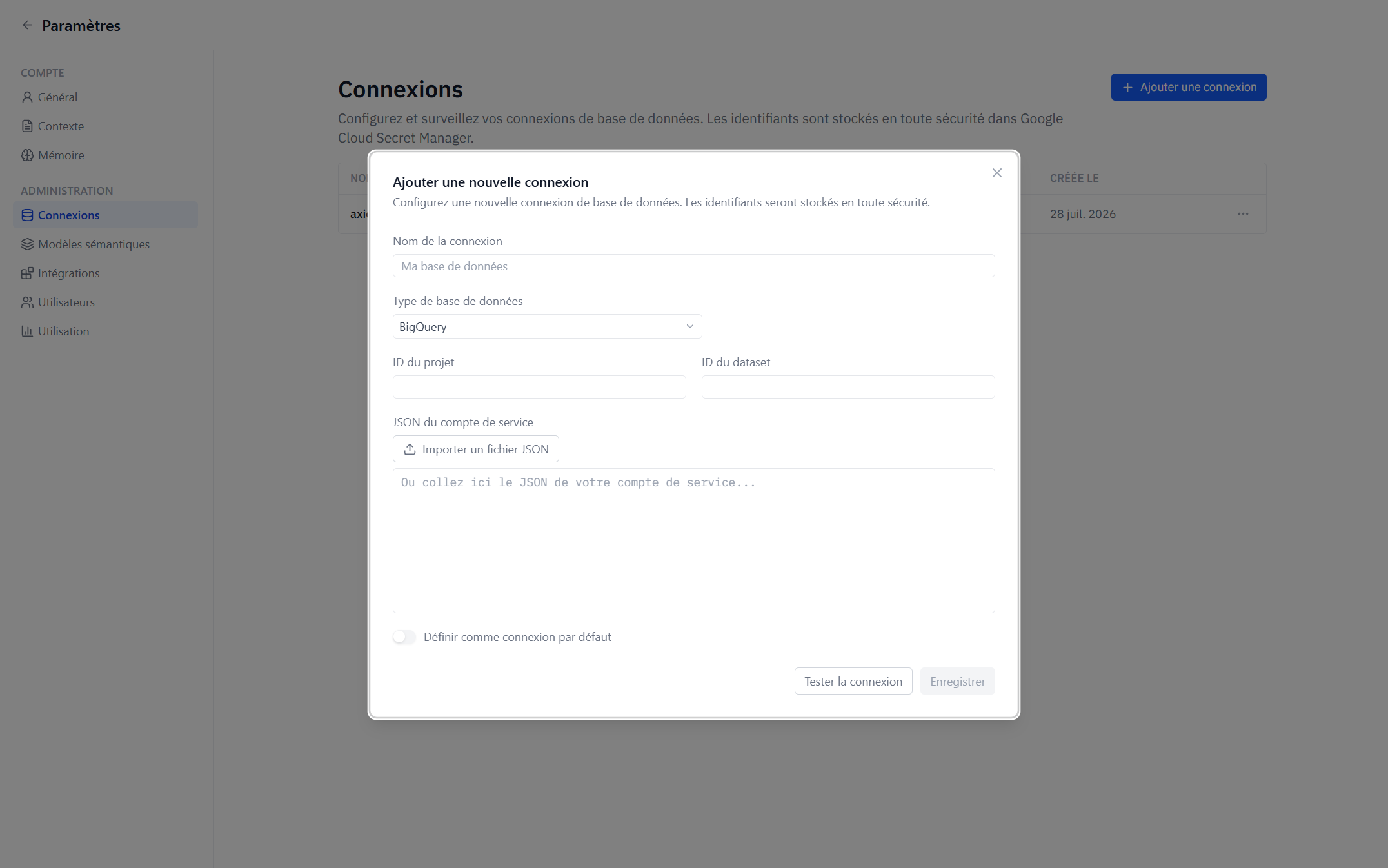
- Go to Settings → Admin → Connections → Add Connection and choose BigQuery.
- Enter the Project ID and Dataset ID.
- Provide the service account key: Upload JSON File, or paste the JSON directly.
- Click Test Connection, then Save.
The key is stored in Google Cloud Secret Manager and used server-side only.
Nested and repeated columns
BigQuery datasets often contain nested STRUCT and repeated ARRAY columns. Axiome understands them:
- Nested struct fields appear as regular fields in editors.
- Arrays of structs can be flattened into virtual models so each array element becomes a row you can group, filter, and join back to its parent. See Virtual models.
Troubleshooting
| Symptom | Likely cause |
|---|---|
| Test fails with a permission error | The service account is missing Data Viewer on the dataset or Job User on the project |
| Test fails with "invalid JSON" | The pasted/uploaded file isn't a valid service account key |
| Tables missing from semantic models | They live in a different dataset than the configured Dataset ID |